Browser bookmarks were supposed to solve the "I want to read this later" problem. They solved it for about three months. Then the folder called "Good Articles" hit 200 items and you stopped opening it.
If you have bookmarks sitting in Chrome, Safari, or Edge that you never look at, you do not need to delete them. You need to move them somewhere with better search, better organization, and a layout that makes you want to use it.
Here is how to migrate them into send/links in a few steps.
Why Browser Bookmarks Stop Working
The core problem with browser bookmarks is that they require you to organize at save time. You have to pick a folder, name it something meaningful, and keep the hierarchy tidy as you go. Nobody does this consistently.
After a few months you end up with either an elaborate folder system you cannot remember or a flat pile under "Bookmarks Bar" that scrolls forever.
send/links takes a different approach. You save links fast and the app handles organization automatically. Every link gets a category, description, and preview image pulled from the page. No folders to manage.
How to Export from Chrome
- Open Chrome and click the ⋮ menu in the top right
- Go to Bookmarks → Bookmark manager
- In the bookmark manager, click the ⋮ menu in the top right of that page
- Select Export bookmarks
- Save the
.htmlfile somewhere you can find it
The whole process takes about 30 seconds. Chrome exports all your bookmarks, including sub-folders, into a single HTML file.
How to Export from Edge
- Open Edge and click the ⋯ menu in the top right
- Go to Favorites → Manage favorites
- Click the ⋯ menu inside the favorites panel
- Select Export favorites
- Save the
.htmlfile
Edge bookmarks export in the same format as Chrome, so the import into send/links works identically.
How to Export from Safari
- Open Safari and go to File in the menu bar
- Select Export Bookmarks…
- Choose where to save and click Save
- You will get an
.htmlfile with all your bookmarks
Safari's export includes Reading List items as well, so anything you saved for later comes along too.
Importing into send/links
Once you have the .html file from your browser:
- Go to sendlinks.app and sign in
- Click your profile picture in the top right of your dashboard
- Select Import links from the menu
- Choose your browser (Chrome, Edge, or Safari)
- Upload the
.htmlfile
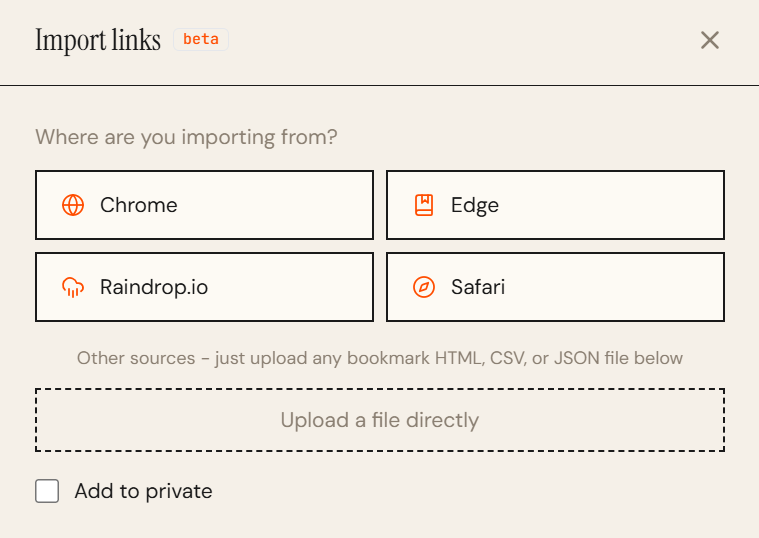
send/links will process the file, skip any duplicates, and import the rest. In the background it fetches titles, descriptions, categories, and preview images for each link automatically. Depending on how many bookmarks you have, enrichment runs over the next few minutes.
What Happens to Your Bookmarks After Import
The links land in your dashboard organized by category. Tech articles under Technology, recipes under Food, job listings under Career, and so on. You did not add those labels. send/links read each page and applied them automatically.
From there you can search across everything by keyword, browse by category, or use collections to group things you are actively working on.
The browser bookmarks you ignored for two years might actually be useful now that you can find them.
A Note on Duplicates
If you have already saved some of these URLs to send/links, the importer skips them automatically. You will see a count of how many were imported versus how many were skipped at the end.
Keep Saving Without Switching Back
After you import, install the Chrome extension so new links go directly into send/links instead of back into browser bookmarks. The extension saves any page in one click without interrupting what you are doing.
The import handles the backlog. The extension handles everything going forward.
Try send/links free. Your first import takes under two minutes.