Raindrop.io is one of the most popular bookmark managers. It does a lot of things well. But if you find yourself saving links you never come back to, searching through a collection that is hard to navigate, or just feeling like the manual tagging is more work than it should be, you are not alone.
If you are ready to move on, or just want to try something different, here is how to get your entire Raindrop library into send/links in a few minutes.
What Is Different About send/links
The main thing that separates send/links from Raindrop is what happens when you save something.
In Raindrop, you pick a collection, add tags, maybe write a note. That workflow is powerful if you are disciplined about it. For most people it becomes a chore, and eventually they stop tagging things consistently.
send/links removes that decision entirely. You save a link and the app automatically extracts the title, description, category, and preview image from the page. A tech article lands in Technology. A recipe lands in Food. A news story lands in News. You never chose those labels.
The result is a library that stays organized even if you never spend a minute on maintenance.
Export Your Raindrop Library
Raindrop makes exporting straightforward:
- Open raindrop.io and sign in
- Go to All bookmarks in the left sidebar
- Click Export in the top right corner
- Under your latest backup, click to download the HTML or CSV file
Raindrop supports both formats. Either one works for the import into send/links, so use whichever downloads faster.
If you have a large library, Raindrop may take a moment to prepare the export file. It will show a timestamp for when the backup was generated.
Import into send/links
Once you have the file:
- Go to sendlinks.app and sign in or create a free account
- Click your profile picture in the top right of your dashboard
- Select Import links from the menu
- Choose Raindrop.io as the source
- Upload your
.htmlor.csvfile
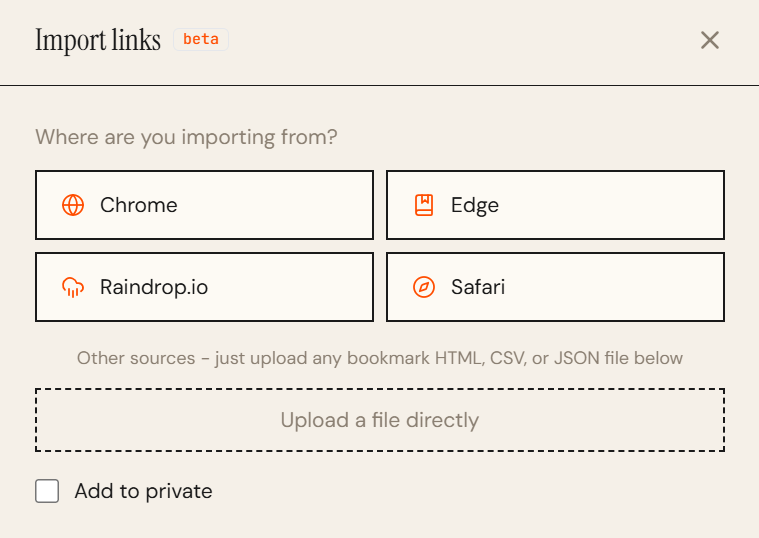
The importer reads your entire Raindrop export, skips anything you have already saved, and imports the rest. After the upload, send/links runs enrichment in the background, fetching current metadata for each link so your library looks clean and complete.
What Happens to Your Collections
Raindrop's collection structure does not carry over directly, but you are not starting from zero. Every link gets auto-categorized immediately, so you still get a structured library. If you want to group things into specific collections, you can create them in send/links and move links in bulk.
Most people find the automatic categories do most of the heavy lifting anyway.
Saving Links Going Forward
Once your Raindrop library is in send/links, you have a few ways to keep adding links without going back to Raindrop:
Chrome extension. The send/links Chrome extension saves the current page in one click. It sits in your toolbar and works on any site.
Telegram bot. If links come your way in Telegram chats, forward them to the send/links bot and they land in your dashboard instantly.
Mobile share sheet. On mobile, share any page to send/links from the browser share menu.
The idea is that no matter where you find a link, saving it takes one action and costs zero decisions.
Search That Actually Works
The most common complaint about bookmark managers is that search is weak. You remember saving something but cannot find it because you do not remember the exact title or URL.
send/links searches across titles, descriptions, domains, and categories together. If you saved a Verge article about a new phone six months ago, searching "phone review" or "Verge" or the phone model will surface it. You do not need to remember what you tagged it.
Private Links
If some of what you had in Raindrop was private research, gifts, job listings, or anything you were not ready to share, send/links has a private mode with PIN protection. Private links are completely separate from your main feed and never appear on your public profile.
When you import, you can check a box to add everything to private mode if you want the whole import treated as private.
Is There Anything You Will Lose?
Raindrop has features send/links does not, and it is worth being honest about that. Raindrop's highlights, nested collections, and team sharing have no equivalent here.
send/links is built around a different goal: save links fast, find them easily, zero maintenance. If that is the problem you are trying to solve, the migration is worth it.
Try send/links free. Import your Raindrop library and see how it looks in about five minutes.